Subtitles and audio settings are the difference between enjoying a foreign film and giving up on it after ten minutes. IBO Player handles them better than many viewers expect. Once you know where the controls live.
The app offers subtitle tracks, audio language tracks, and sync controls, but they are not all in the same menu, and some channels carry only one audio track while movies often carry several.
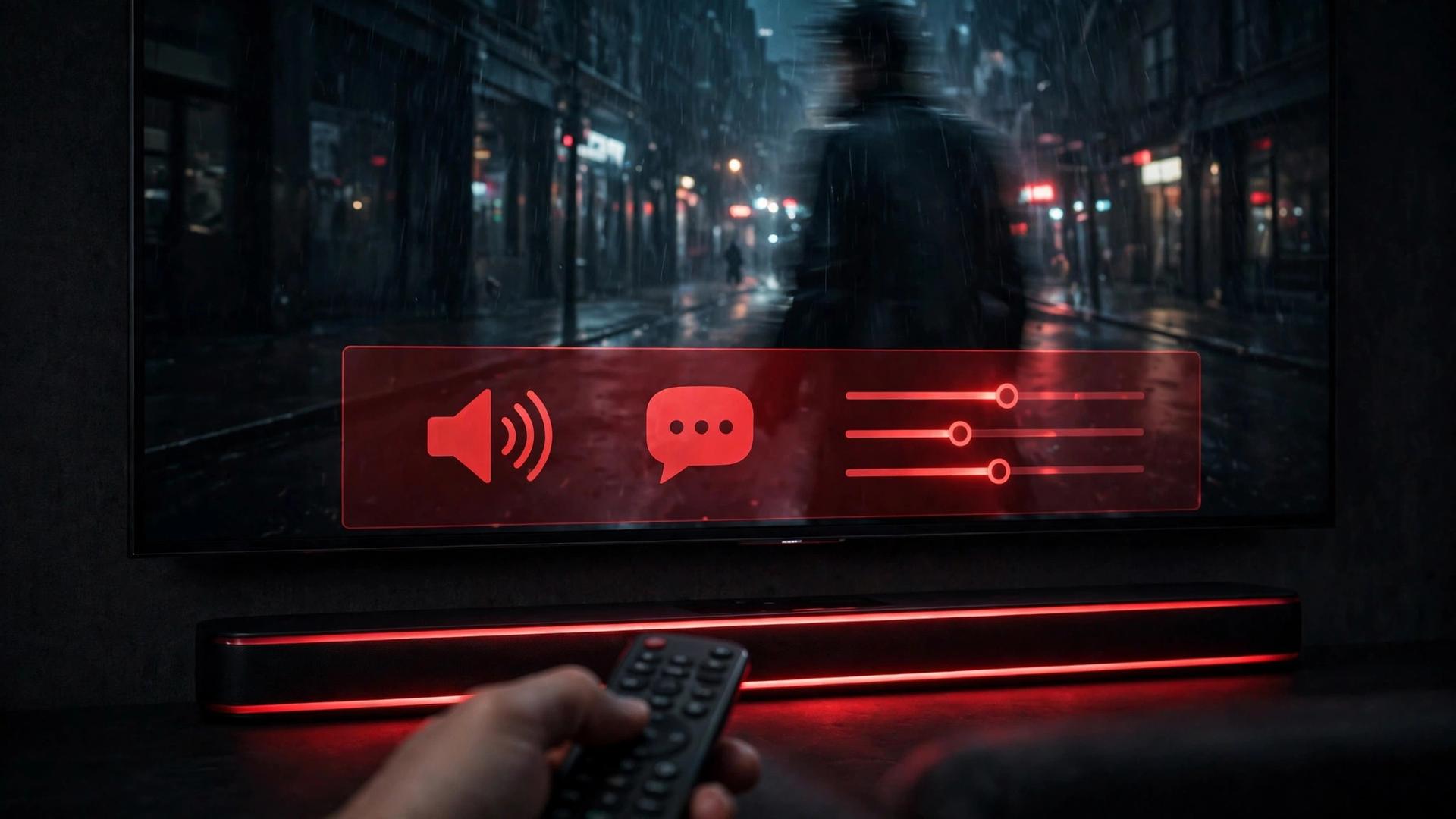
The CC icon is the whole trick. While a film plays, open the playback controls, look for the speech bubble or the letters CC, and pick your language. Subtitles appear within a second or two. Audio works the same way — a second icon, a second list, an instant switch. The confusion starts because the controls are not all in one menu, and because some channels carry only one audio track while movies often carry several. Defaults live in the app settings. Set them once.
IBO Player Subtitles: How to Turn Them On
While a movie or series is playing, open the playback controls on your remote. Look for the subtitle or CC icon. It is usually shown as a speech bubble or the letters CC. Select it, choose the language you want from the list, and the subtitles will appear within a second or two. The choice applies to the title you are watching, and the app will usually remember your last choice for the next title in the same session. IBO Player Favourites and Parental Controls Guide.
For live channels, subtitles depend on whether the channel itself broadcasts them. Many news and international channels carry subtitles. Some live sports channels do not. Live subtitles are produced differently from film subtitles. If the subtitle menu shows no tracks for a live channel, that channel simply has no subtitle track to offer, and changing a setting on your television will not create one.
Change the audio language
Movies and series on IBO Player often carry more than one audio track, for example the original language and a dubbed version. While a title is playing, open the playback controls. Look for the audio or language icon. Choose the track you want. The change is instant, and you can switch back the same way if the dubbed version is not to your taste.
Live channels usually carry one audio track, with a second track for bilingual broadcasts in some regions.
If the audio menu shows only one track, that title has only one audio language available. Support cannot add another one. The track comes from the content source. Check the title details before you start watching, because the available languages are often listed there, and choosing a title that already offers your language saves a frustrating search mid-film.
| Setting | Where | Tip |
|---|---|---|
| Subtitles on | Playback controls, CC icon | Applies to current title |
| Audio language | Playback controls, audio icon | Movies offer most choice |
| Preferred language | App settings, language | Set once per device |
| Subtitle sync | Pause, resume, reopen title | Report one bad title |
| Live subtitles | Channel dependent | Not all live channels carry them |
Fix subtitles out of sync
Subtitles that appear too early or too late are usually a stream issue rather than a setting you changed. First, pause the title for a few seconds. Then resume. The player will resynchronise the subtitle track when playback restarts. If the delay remains, close the title and reopen it, which forces the app to download the subtitle track again from the start.
If only one title has out-of-sync subtitles while others are fine, report that title to IBO Player TV on WhatsApp at +212 604 034 330 — the subtitle file for that title may need fixing on the server side. When every title is out of sync, check your internet connection and lower the stream quality one step: a struggling connection can delay the subtitle track more than the video. Also try a different audio track, since a dubbed track can shift the subtitle timing. IBO Player Not Working? 12 Fixes That Work in 2026.
Set your preferred language and defaults
IBO Player lets you set a preferred subtitle language and a preferred audio language in its settings, so you do not have to choose them for every title. Open the app settings, find the language or subtitle section, and set your first-choice language and, if offered, a second-choice fallback. The app will then pick that language automatically whenever a title offers it, and will fall back to the original language when your choice is not available. Also check your television language settings, because the app can inherit the system language on first install. If the app menus are in a language you do not want, change the television system language first, then restart IBO Player. For households with children, the subtitle setting is worth setting once on each device, because each television keeps its own preferences. IBO Player on Samsung TV Setup 2026.
- Use the CC or speech-bubble icon during playback to pick subtitles
- Choose the audio track from the playback controls while a title plays
- Pause and resume to resynchronise subtitles that lag behind
- Set a preferred subtitle and audio language in app settings
- Report one out-of-sync title to support, it is a server-side fix
Set your preferred language once in the app settings. Use the CC and audio icons during playback. Pause and resume when subtitles lag, reopen the title if the delay stays, and report any single title that stays out of sync so support can fix its subtitle file. If a channel shows no subtitle track at all, that channel simply has none — no setting will create one.