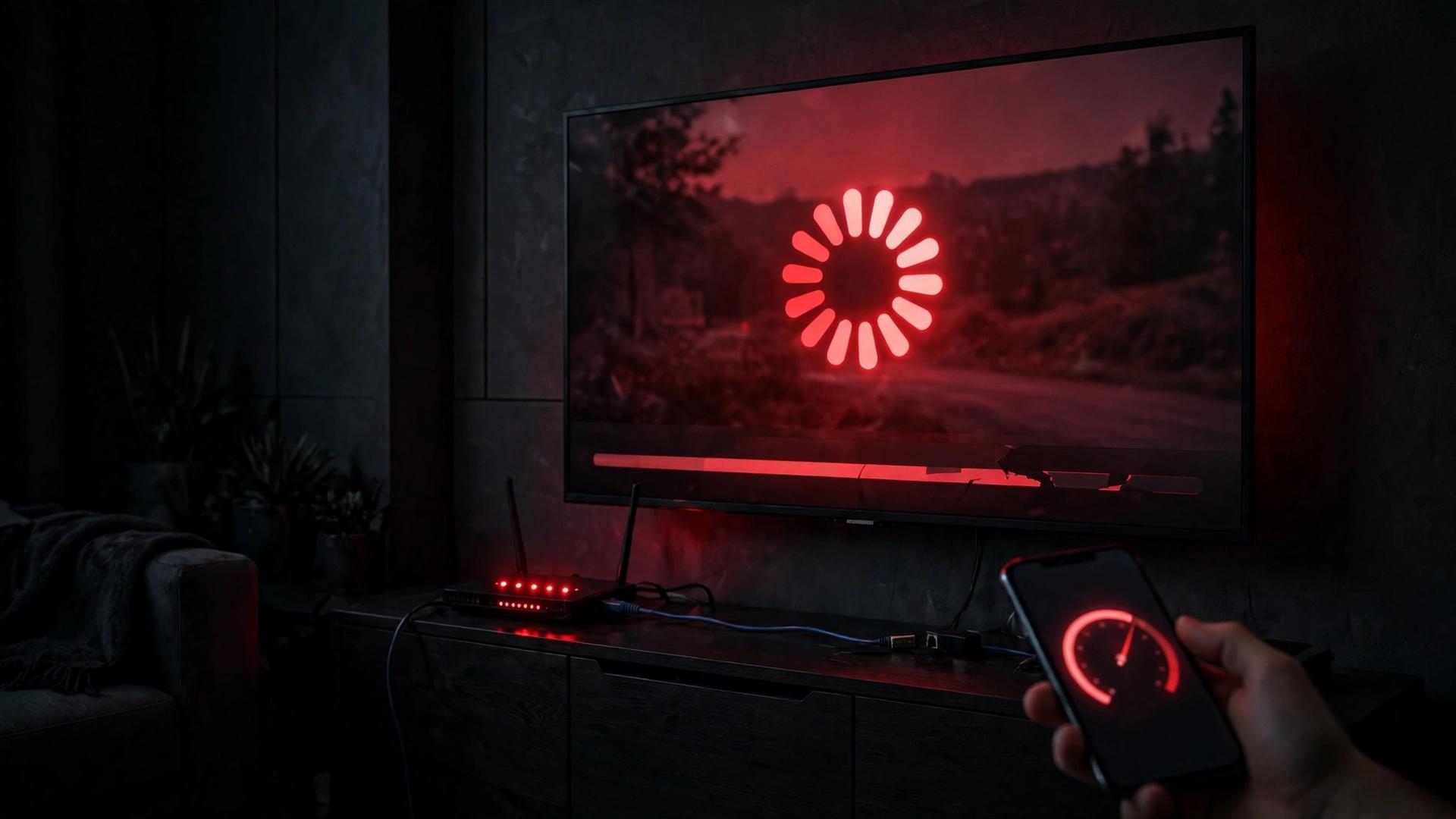
Buffering is the most annoying IBO Player problem, because it always happens at the worst moment: a goal, a plot twist, or the final minutes of a live event. The spinning circle means the player has run out of video to show, and it is waiting for more data to arrive. The cause can sit in your Wi-Fi, your router, your device, your VPN, or, less often, the stream itself, and each cause has a different fix.
Same channel. Midday, it plays fine. At 9pm, it freezes. That is not a broken playlist — that is congestion, and it is the single most useful test you can run. Compare the same channel at a quiet time and a busy time before you change anything. If it plays fine at midday and freezes at 9pm, the network is the story, not the app. The rest is finding where: Wi-Fi, router, device, VPN, or one faulty stream.
IBO Player Buffering: Is It One Channel or Every Channel?
Before you change anything, test whether the buffering affects one channel or all of them. Open a popular news channel. Then a sports channel. Then a movie. Note which ones freeze. If only one channel buffers while the rest play smoothly, that channel stream is the problem, and you should report its exact name to IBO Player TV on WhatsApp at +212 604 034 330, then watch another channel while it is fixed. IBO Player Not Working? 12 Fixes That Work in 2026.
If every channel buffers, the problem is in your home network or your device, and the rest of the steps below apply. Also note the time: buffering that only happens at peak evening time points to a congested network, either your home Wi-Fi under load or your internet provider slowing at busy hours. Test the same channel at a quiet time, because a channel that plays fine at midday and freezes at 9pm is telling you about congestion, not about the playlist.
Fix the Wi-Fi first
Live television needs a stable connection more than a fast headline speed, so move your television or Firestick closer to the router for a test, or plug in an Ethernet cable and see if the buffering disappears. If Ethernet fixes it, your Wi-Fi was the cause, and the lasting answers are a wired connection, a mesh Wi-Fi node in the viewing room, or moving the router to a more central, higher position away from thick walls and metal objects. IBO Player on Firestick Install Guide 2026.
Use the 5 GHz Wi-Fi network when the device is in the same room as the router, because it is faster and less crowded, and use 2.4 GHz only when the device is further away, because that band travels through walls better.
Restart your router once a week, and avoid running large downloads, cloud backups or video calls on the same network while you watch live sport, because those eat the bandwidth IBO Player needs.
Fix the device and the stream quality
A full or overheated device buffers more than a healthy one. Clear the IBO Player cache. Uninstall apps you no longer use. Keep at least 1 GB of free storage, especially on Firestick. Restart the television or Firestick weekly, and make sure a Firestick behind a warm television has airflow, because an overheated stick throttles itself and drops frames that look like buffering.
Inside IBO Player, lower the stream quality one step and test again. A 4K stream needs a strong, stable connection, and dropping to Full HD on a weak evening can turn an unwatchable channel into a smooth one, with a picture difference that is small on most televisions. If lowering the quality fixes the freezing, your connection cannot sustain the higher quality at that time, and the fix is the network, not the app. IBO Player Black Screen Fix Guide.
Check the VPN, the router and the provider
Turn off any VPN and test the same channel, because some VPN servers are slow or congested, and a VPN can add a long detour to every stream. If the channel plays smoothly with the VPN off, try a different VPN server, preferably one close to your country, or leave the VPN off for television. Also check whether your internet provider slows video traffic at peak time, by testing a speed test during the buffering and comparing it with a quiet-time result. If the router is more than five years old, consider replacing it, because older routers struggle with the steady stream of data that live television needs, even when a short speed test looks fine. As a last check, message support with the channel names, the time the buffering happens, and whether Ethernet fixed it, because that information lets support tell you quickly whether the fault is a single server, a routing issue, or something in your home.
- Test one channel versus all channels before changing anything
- Try Ethernet or move closer to the router to test Wi-Fi
- Use 5 GHz Wi-Fi nearby and 2.4 GHz only at a distance
- Clear the cache, keep 1 GB free and restart the device weekly
- Lower stream quality one step and test with the VPN off
| Buffering pattern | Likely cause | First fix |
|---|---|---|
| One channel only | Faulty single stream | Report channel name to support |
| Every channel | Weak Wi-Fi or router | Ethernet, restart router |
| Peak time only | Network congestion | Wired connection, off-peak test |
| After weeks of use | Full storage, overheating | Clear cache, restart, airflow |
| With VPN on | Slow VPN server | VPN off, nearer server |
Test one channel against all channels first. Test the same channel at midday and at 9pm. Fix the connection before the app: Ethernet or a nearer router, 5 GHz nearby, a weekly router restart. Lower the quality one step on weak evenings. Report any single channel that keeps freezing while the rest play smoothly, with the time it happens — that detail tells support exactly where to look.